Visual guide
Toosheh: a visual guide to receiving files from satellite
The internet goes down, Toosheh arrives from the sky. The complete Toosheh guide, from zero to extracting files.
- Yahsat satellite
- Multi-gigabyte daily bundle
- Fully offline
- Windows, Android and Linux
If you live in Iran or make content for an Iranian audience, you know this situation: the internet is slow, filtering gets heavier every year, and there are days when the network goes completely dark. Toosheh was built for exactly those days. Instead of getting around the filter, Toosheh does not use the internet at all; news, films and books arrive straight from the sky, over the satellite signal, at the dish on your roof.
Why read this guide
This guide shows step by step how to do it: from setting up the receiver to extracting the files on your phone or computer. Every step is explained in full detail, so even if you have had no experience with satellite equipment until today, you can get through it without trouble.

The short answer
Every day Toosheh broadcasts several gigabytes of news, video, books, podcasts and filter-circumvention tools on a specific frequency of the Yahsat satellite. With an ordinary dish, a receiver that can record to USB, and a flash drive with enough free space, you record this bundle. Then, with the official Toosheh software, you open and extract the recording on your phone or computer. The whole path is one-way; no SIM card needed, no circumvention tool, no internet connection.
What Toosheh actually is
Before the technical steps, it is good to know what this service does conceptually, because this basic understanding makes the rest of the steps logical and simple.
Toosheh was built by the American nonprofit organization "Free Internet Pioneers". Its founder is Mehdi Yahyanejad, an Iranian-American technologist and entrepreneur who started the organization in 2012 and put Toosheh on a satellite a few years later.

The core idea comes from an interesting technical constraint. Satellite TV broadcasting uses a format called a "transport stream" that can carry several layers of audio, video and data at the same time in a single file. The Toosheh team built a protocol that uses this spare data capacity: instead of the usual TV program, digital files are packed into the same stream. Your home receiver takes this signal like an ordinary TV channel and records it onto the flash drive; the result is a raw file that the Toosheh software later opens and pulls the real files out of.
Here is the important point: TV broadcast satellites like Yahsat broadcast their signal over a fixed region of the Earth. Every dish inside that region receives the same signal, without the transmitter knowing how many dishes are receiving it or where they are. The link is completely one-way, and no data is sent back from the receiving side; no internet involved, no SIM card, no number is registered. According to Yahyanejad, it is exactly this feature that makes blocking the satellite signal technically very difficult.
What you need
To start, you need only four things.
- An ordinary satellite dish — as long as it is set to 52.5 degrees east, i.e. the Yahsat satellite. If your dish already picks up the usual satellite channels, it is most likely already set to this satellite.
- A receiver that can record to USB — with output in one of the formats TS, TSV, M2TS or TP0. This is the only truly strict requirement of the whole guide; if your receiver only records in MPG format, the Toosheh software cannot open the file.
- A flash drive with at least a few gigabytes of free space — the daily bundle is large, and a lack of space leaves the recording incomplete.
- A Windows, Android or Linux device — for installing the extraction software and opening the files. On Android, you also need an OTG cable to connect the flash drive to your phone.
Tuning the receiver to the Toosheh frequency
Now to the technical part: entering the exact frequency information in the receiver. This is the most error-prone point in the whole process, because one wrong digit is enough for the receiver to never find the channel.
The four values that must be entered in the receiver exactly:
- Satellite
- Yahsat, 52.5 degrees east
- Frequency
- 11766
- Polarization
- vertical
- Symbol rate
- 27500
Why does the automatic scan not work? Because the automatic scan on receivers is usually designed to find ordinary TV channels, and it ignores data channels like Toosheh. That is why you must choose manual search from the receiver's installation menu, not automatic search.
The exact steps:
First, enter the receiver's installation menu and choose manual search. Then pick the Yahsat satellite from the list, enter the frequency, polarization and symbol rate exactly as in the table above, and run the search at the end.
If the settings are right, the Toosheh channel appears in the list. When you enter the channel, you will not see an ordinary TV picture; you will see an information page. This is not a malfunction; it is exactly what you should see. In a corner of this page there is an information box that you should read before recording: the date of that day's bundle, the exact duration of the bundle, which is the minimum time needed for recording, the size of the bundle, which shows the minimum free space needed on the flash drive, and a broadcast countdown.
If the channel is not found with these values, assume the parameters have changed rather than that you made a mistake; you can get up-to-date numbers from the official toosheh.org website or the official Toosheh Telegram channel, because these values are sometimes updated.
Recording from the channel
Now that the channel is found and the information page is open, it is time to record.
Plug the flash drive, with at least as much free space as the size announced on the page (usually eight gigabytes or more), into the receiver and press the record button, which is usually a red circle.

Let the recording continue for at least the announced duration of the bundle, without interruption, and stay on the same channel until the end, because changing channels cuts the recording and the bundle remains incomplete.
The TV does not need to be on; only the receiver must stay on, tuned to the Toosheh channel. So you can record at night, when electricity is cheaper and the house is calmer. If the signal is weak or jamming is possible, keep recording for longer than the announced minimum; Toosheh has a redundancy system, about five to thirty percent of the bandwidth, that compensates for lost parts of the signal.
There is no fixed, permanent number for the recording duration; the measure is always the duration and size written on the channel page on that same day.
After it ends, press the stop button and safely remove the flash drive. The final file must have one of the extensions TS, TSV, M2TS or TP0.
Installing the Toosheh software
The file on your flash drive is not usable yet; it is a raw file of the satellite signal. The official Toosheh software does exactly this job: it opens the raw file and pulls the real news, video and book files out of it.
Install the software only from official sources; a tampered version is exactly the trap you are escaping from by using Toosheh.
Windows: you need Windows 7 or later, and the program depends on the .NET Framework. If you run into an error about an outdated .NET version during installation, stop the installation, update .NET from the Microsoft website first, and then come back. Windows XP is not supported.
Android: you need Android 7 or later. The app is available on Google Play as Toosheh Extractor, and if you don't have access to Google Play, get the APK installer file directly from toosheh.org.
Linux: it comes with a ready-made executable file that just needs to be given execute permission and opened. Its interface is identical to the Windows version.
Extracting the files
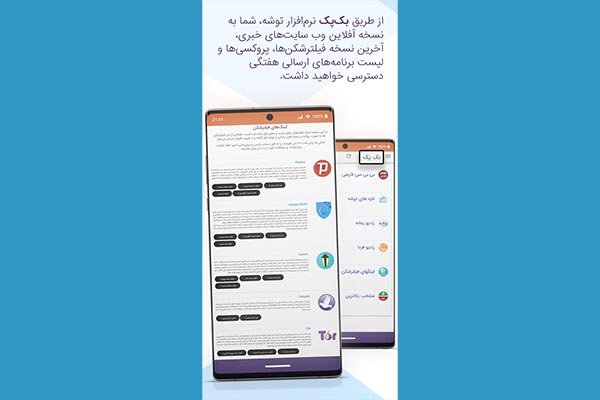
After installation, the extraction steps are almost the same and linear on all platforms. The software has five sections, available from the drop-down menu at the top of the page: the satellite section, the heart of the program, which opens and extracts the recording; the files section for the categorized display of the extracted content; Backpack, the offline version of several news sites, browsed without internet; the local network for wireless file sharing between devices; and settings.
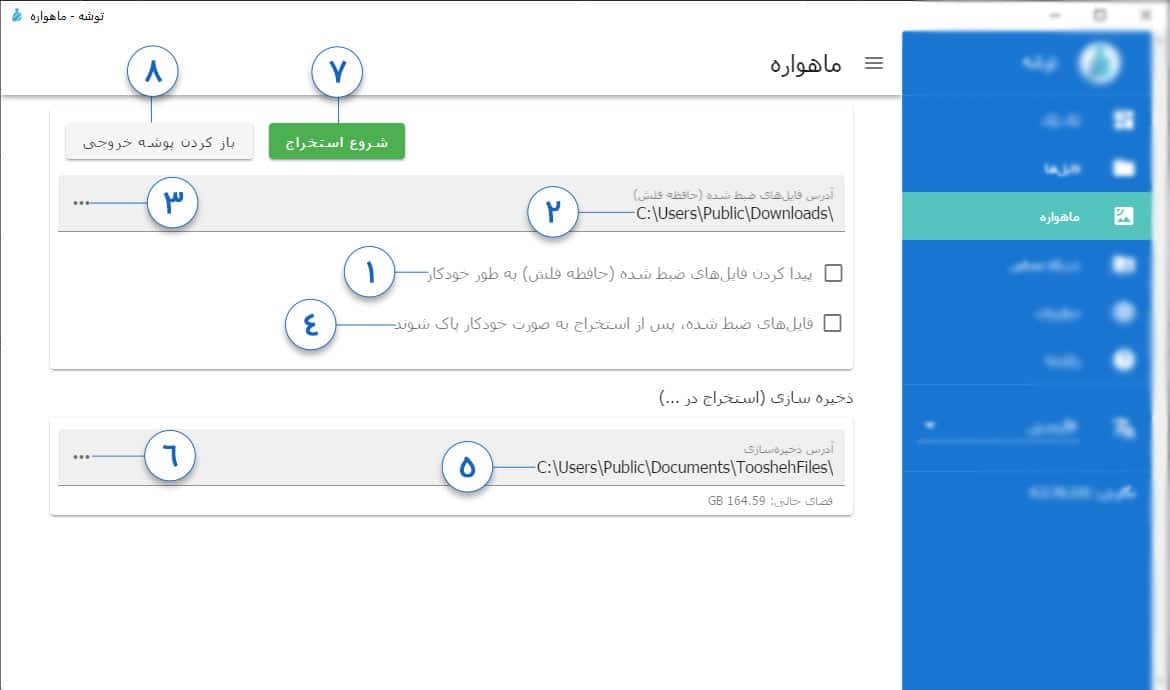
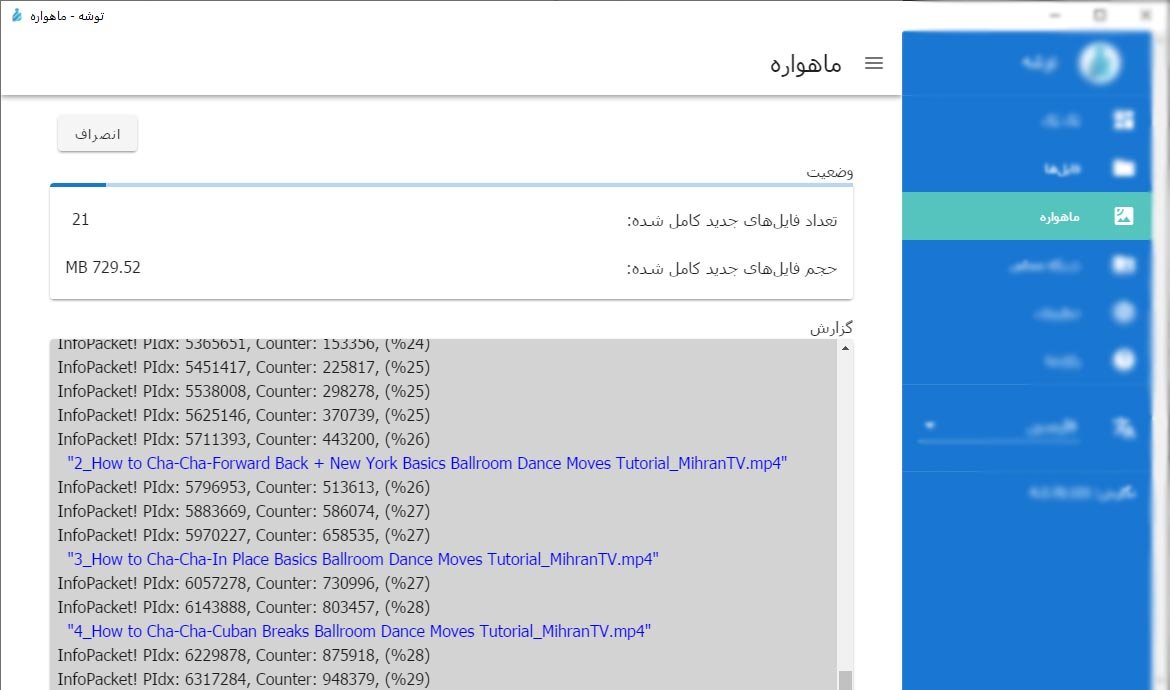
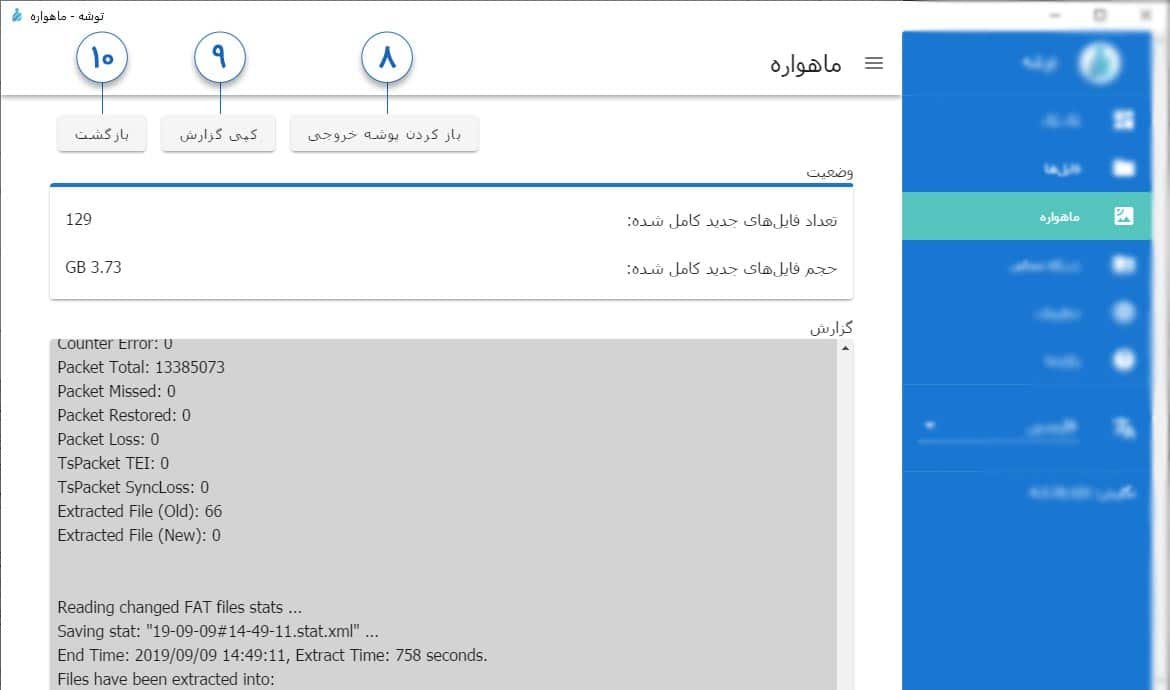
On Windows, inside the satellite section, first enable the option to automatically find the recording so the program recognizes the flash drive itself; if automatic detection does not work, enter the file path manually. If you like, you can also enable the option to automatically delete the raw file after extraction. Then check or change the save path of the extracted files, and finally press the start-extraction button and wait.
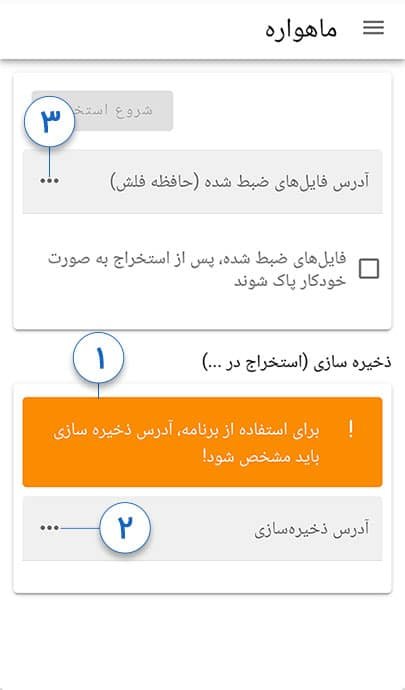
On Android, the first time, the program asks you to specify the save location, and until you do, the extraction button does not activate. Then give the program the path of the file on the flash drive, which is connected with an OTG cable, and start the extraction.
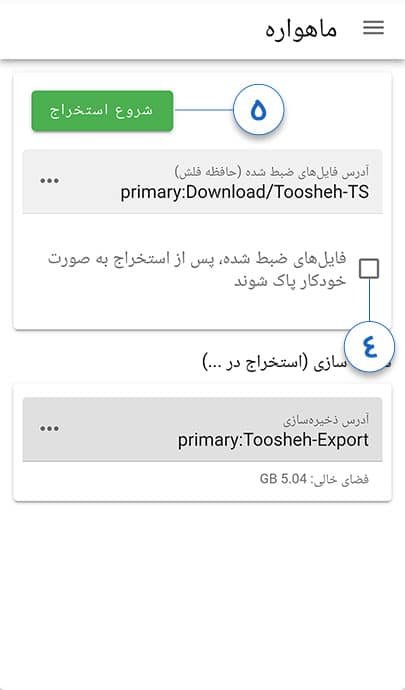
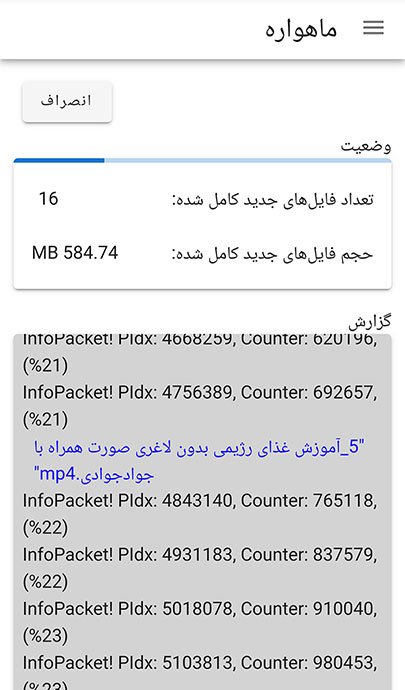
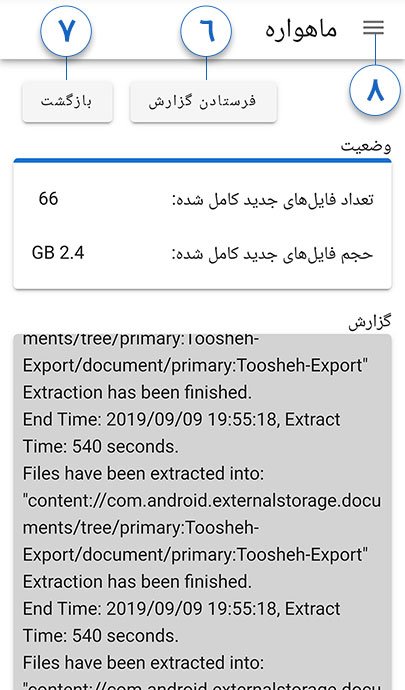
Extracting several gigabytes of data usually takes less than a minute, because this is only opening the file structure, not downloading or heavy processing. At the end, the software shows a summary of how many files were extracted successfully, and if a file had an error, its error report can also be sent to support.
Local sharing and other features
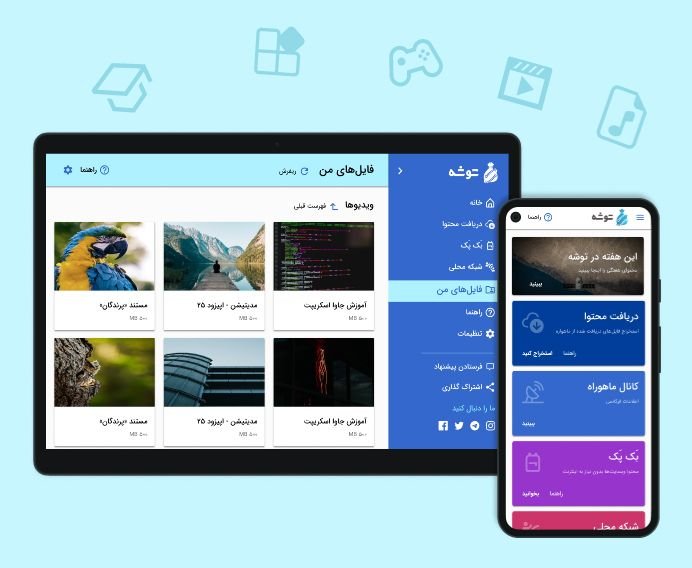
If you have several devices at home, each one does not need to repeat the recording and extraction process separately. The local network section of the Toosheh software solves exactly this problem: the device that received and extracted the bundle puts the content at the disposal of the other devices over the same home Wi-Fi, without an internet connection and without using mobile data. The second device only needs to scan the QR code or open the specified address in a browser.
The Backpack section is also worth knowing: it keeps the offline version of several news and reference sites, something that practically replaces the browser when the internet is down.
In every day's bundle, besides news, video and books, filter-circumvention tools are also sent. Toosheh gathers its daily content from more than a hundred publishers, from news agencies and educational institutions to human rights organizations.
If you received nothing
Any problem on this path usually comes back to one of these five categories.
- The channel is not found. Re-enter the frequency, polarization and symbol rate parameters again, carefully, and get up-to-date numbers from the official sources.
- Only a picture was recorded, not a data file. The receiver recorded in the wrong mode; set the recording mode to data or TS.
- The signal is weak and the file incomplete. Record for longer than the announced minimum; Toosheh's redundancy rebuilds lost parts to some extent.
- The software does not read the file. The file extension must be TS, TSV, M2TS or TP0; if it is not, check the receiver's recording settings again.
- Installation stopped with an error (Windows). The most common reason is an outdated .NET Framework version; update it.
If the problem still remains after these checks, the official Toosheh support is available via email and the official Telegram and Instagram channels.
If you only remember three things from this guide
Point one: the whole process is one-way. The signal only comes from the satellite to your dish, and no data leaves your device; no internet needed, no trace remains.
Point two: the setting values, i.e. frequency, polarization and symbol rate, must be entered with manual search, not automatic scan. If one of these numbers is wrong, the whole path stops.
Point three: the duration and size of the recording are not fixed. Always read them from that day's information box on the channel page, not from a number you have memorized.
Install it today; on the day of the blackout there is no time to learn, only time to use.
Read more
- Rostam Media: a visual guide to receiving files from a satellite — satellite reception with the Rostam software
- Aligning a dish and receiver for Rostam Media — aiming the dish and fixing signal errors
- The Deepfake Case Files: the war that shipped with its own footage — documenting the war's fake videos
- PRISONBREAK: when even your liberation is fabricated — influence networks in blackout days